How to use UNIPA
How To Use UNIPA
Universal Passport (UNIPA) is a system that allows you to register and manage your classes and provides ongoing support. Let us show you how to start using UNIPA.- Accessing UNIPA
- Changing the language setting
- Entering personal information
- Searching the syllabus to find course information
- Registering your courses
- Checking your grades
Accessing UNIPA
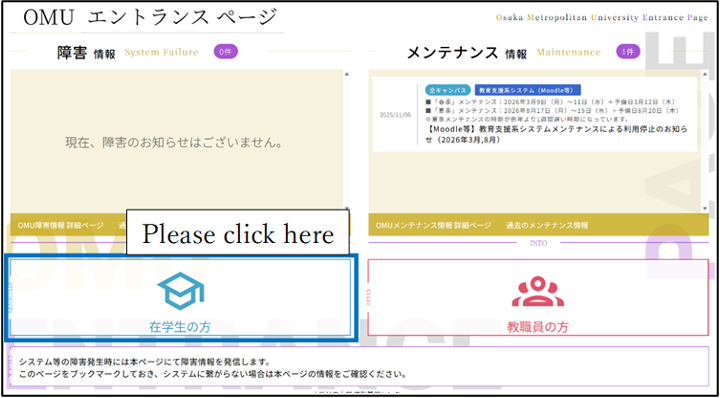
In order to have access, please type “https://e.omu.ac.jp/” in your browser and log in from ”在学生の方”.
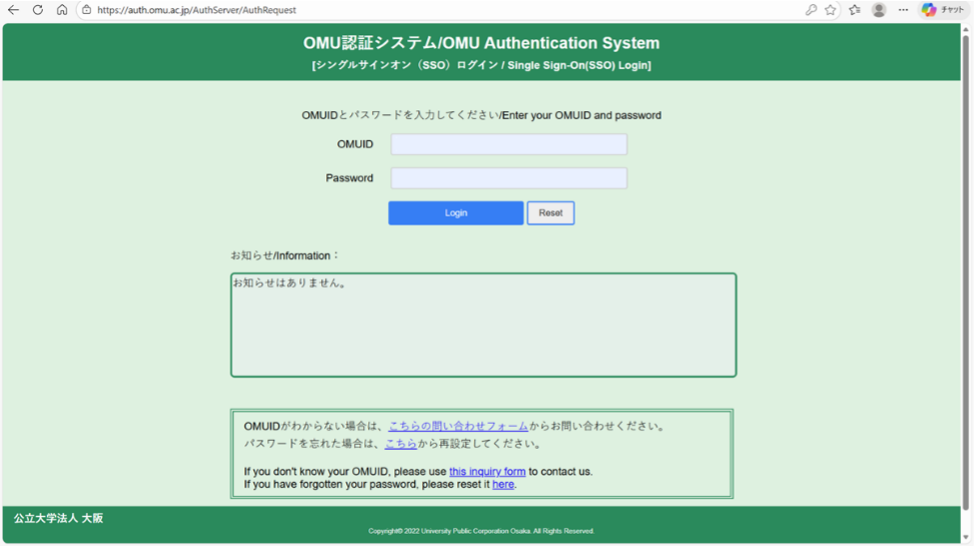
Please enter your OMUID and password in the authentication system and click “Login”.
Changing the language setting
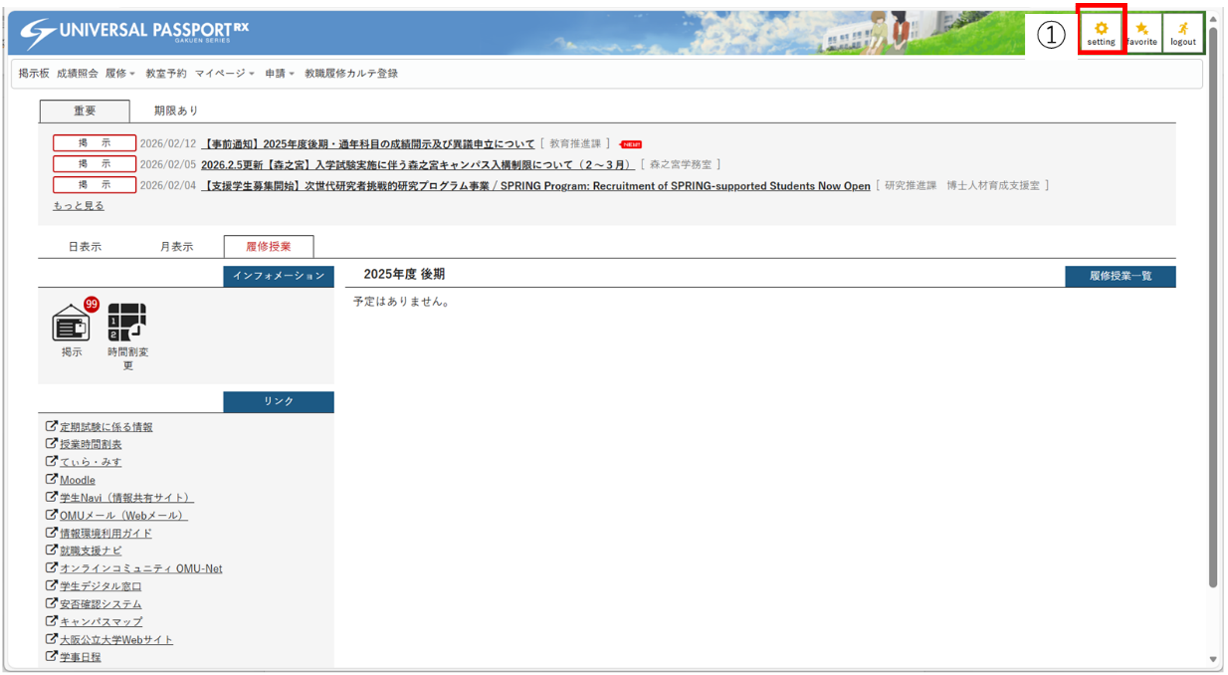
You can change Japanese to English if UNIPA is displayed in Japanese. First, please click “setting" on the top right corner of the UNIPA screen(1).
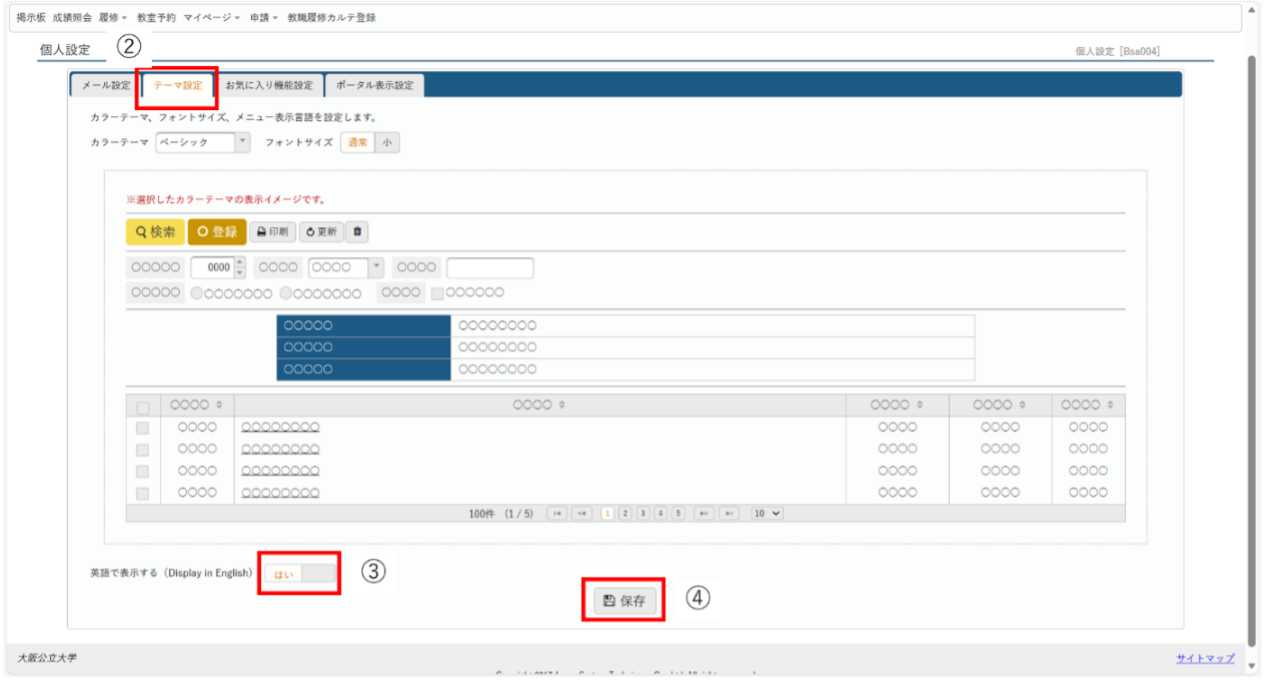
Select “テーマ設定” tab(2), change “いいえ” to “はい” for “Display in English”(3), and then click “保存”(4)
Now, you can view the UNIPA screen in English.
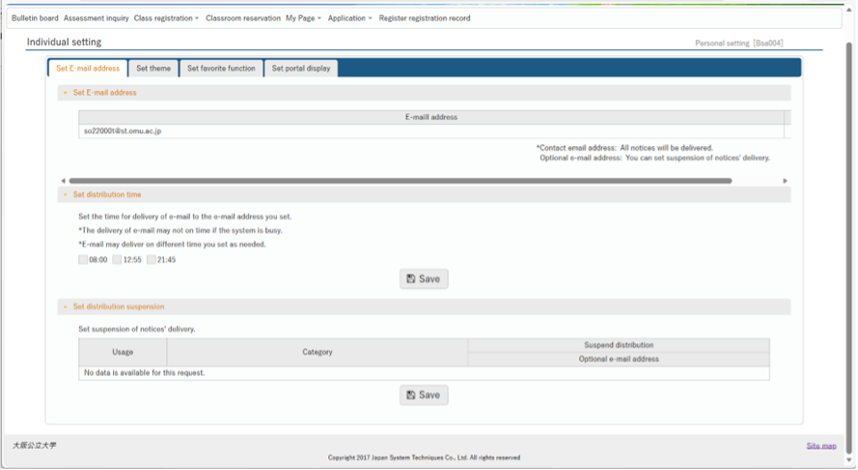
Entering Personal Information
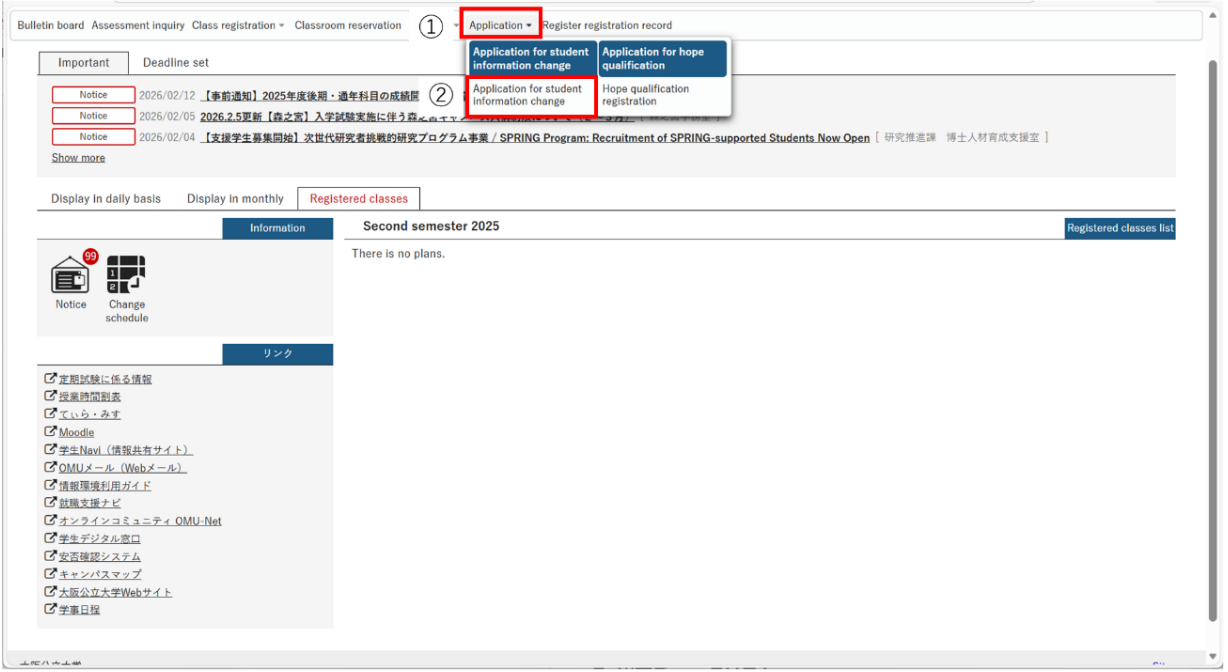
First thing to do is to enter personal Information. Click “Application"(1), and then click “Application for student information change.”(2)
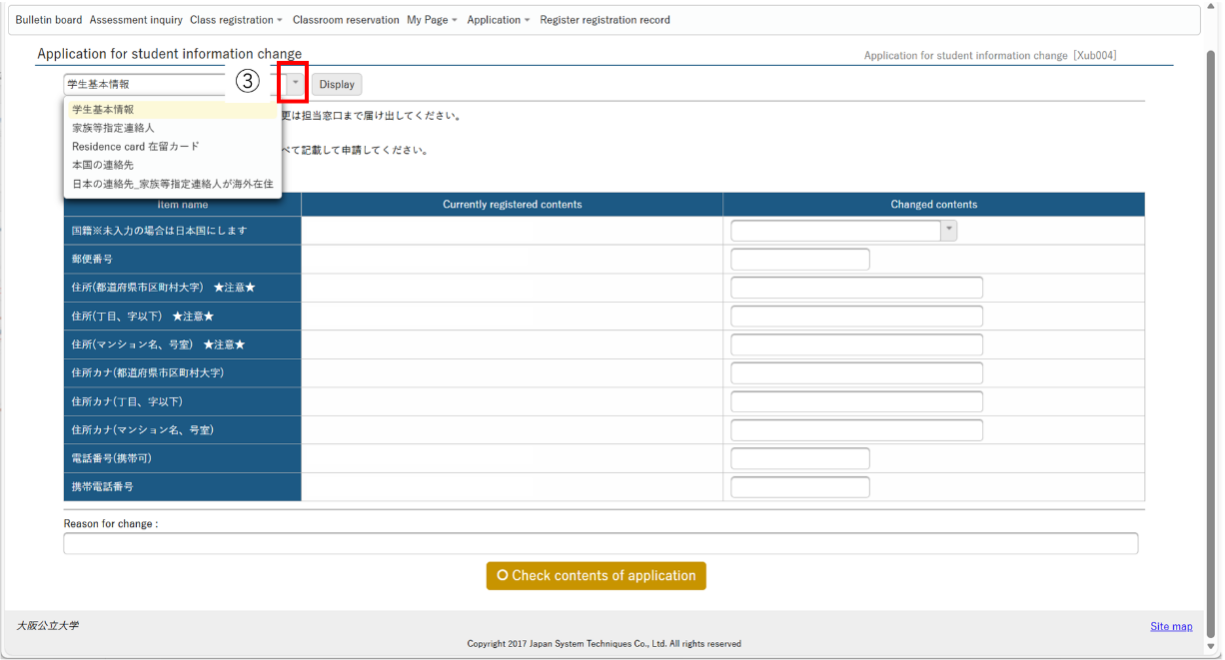
You can see “Application for student information change” page.
Click on pull-down menu(3) to choose the field to enter.
Note: This pull-down menu will remain in Japanese even if you select English language setting.
The information you need to enter is:
- 学生基本情報: Student Basic Information
- 家族等指定連絡先: Emergency Contact
- 在留カード: Residence Card
- 本国の連絡先: Home Country Contact Information
- 日本の連絡先: Japan Contact Information (Please consult with your supervisor.)
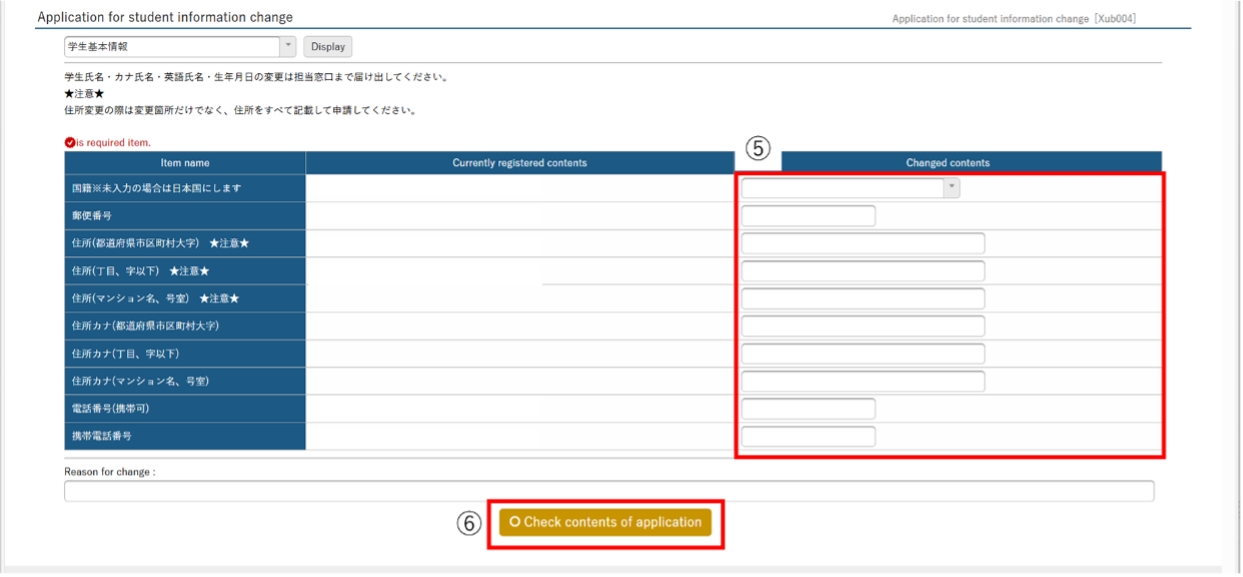
You have to click on “Display”(4) to proceed.

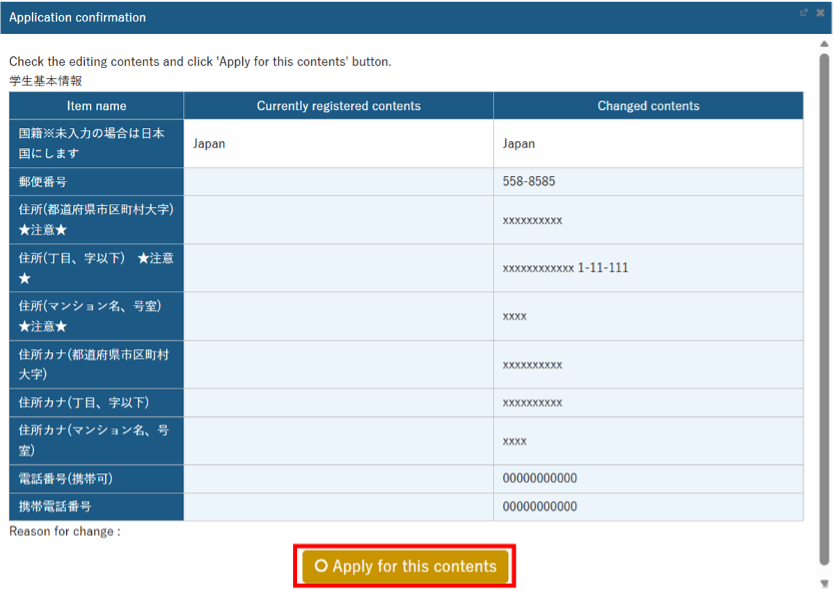
Please enter the required information in “Changed contents” section(5) and click “Check contents of application”(6)
Please click “Apply for this contents” to save the information in the system.
Searching the syllabus to find course information
First, you have to search the syllabus for classes you need to take. Instructions for accessing the syllabus are provided below.
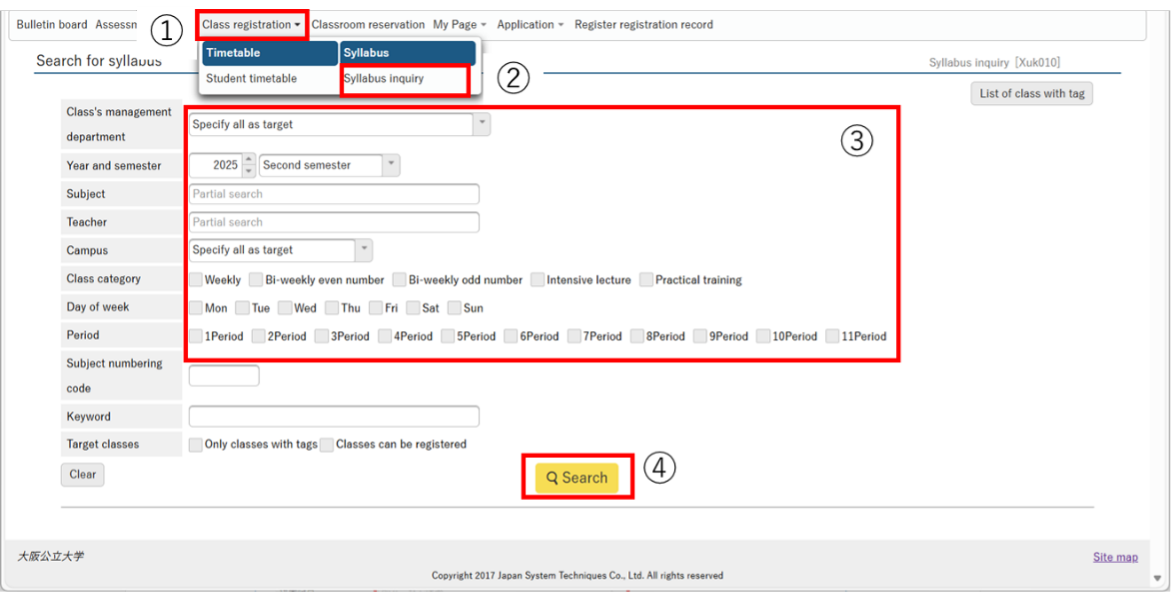
- Click “Class registration”(1)
- Click “Syllabus inquiry”(2)
- Enter the class name or the contact information of the instructor(3)
- Click “Search”(4)
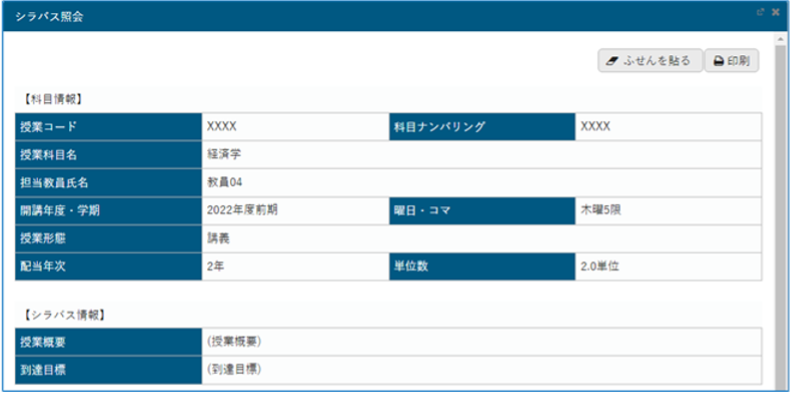
The search results will be shown. Select the class you wish to verify.

You can verify the contents of the class.
Registering your courses
Once you have decided which classes to take, you can register the courses.
First, please click "Class Registration"(1).
This dropdown menu is available only during the course registration period.
Next, click "Class Registration"(2) to proceed with course registration.

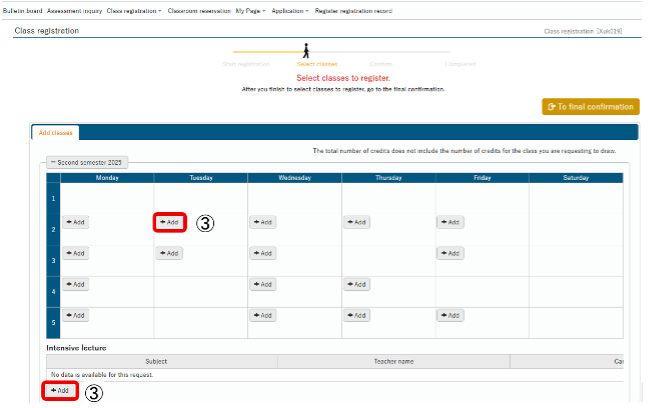
The registration information is organized into three main categories: Monday–Saturday courses, intensive lecture, and practical training. Click on “+add"(3) for the day, time and period in which the class is held and register for the class you wish to take. Seminars held by each laboratory can often be viewed as intensive lecture. Click “+add”(3) to see the classes scheduled for each time slot.
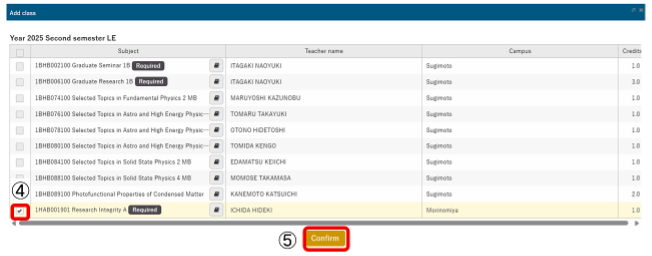
Select the desired items by checking the boxes(4), and then click “Confirm”(5).
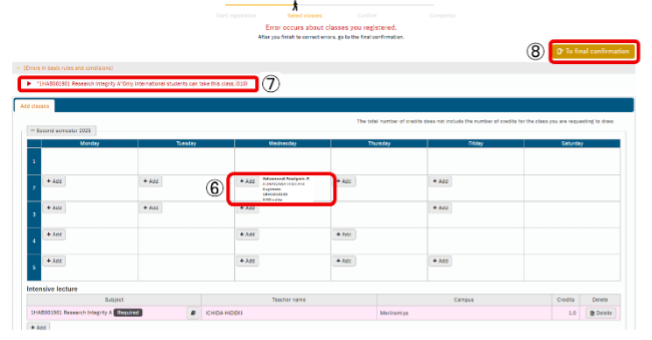
Please check that all the items you selected are visible on the registration screen(6). If there is an issue with your class selection, the message displayed (7) will be shown. If there are no problems, click “To final confirmation” button(8) at the top right corner to access the confirmation screen.
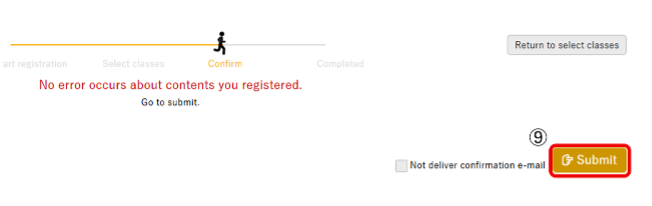
Provided there are no problems with your registration, the screen shown in the figure will appear. Click the “Submit”(9) button to proceed.
The screen shown below (10) confirms that your registration has been successfully completed. Congratulations!

The information you have registered will be shown on the home screen of UNIPA.
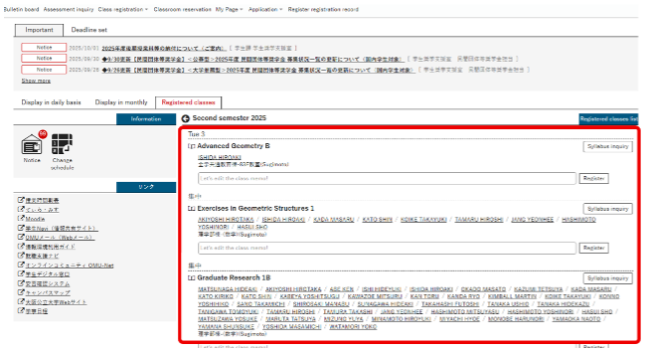
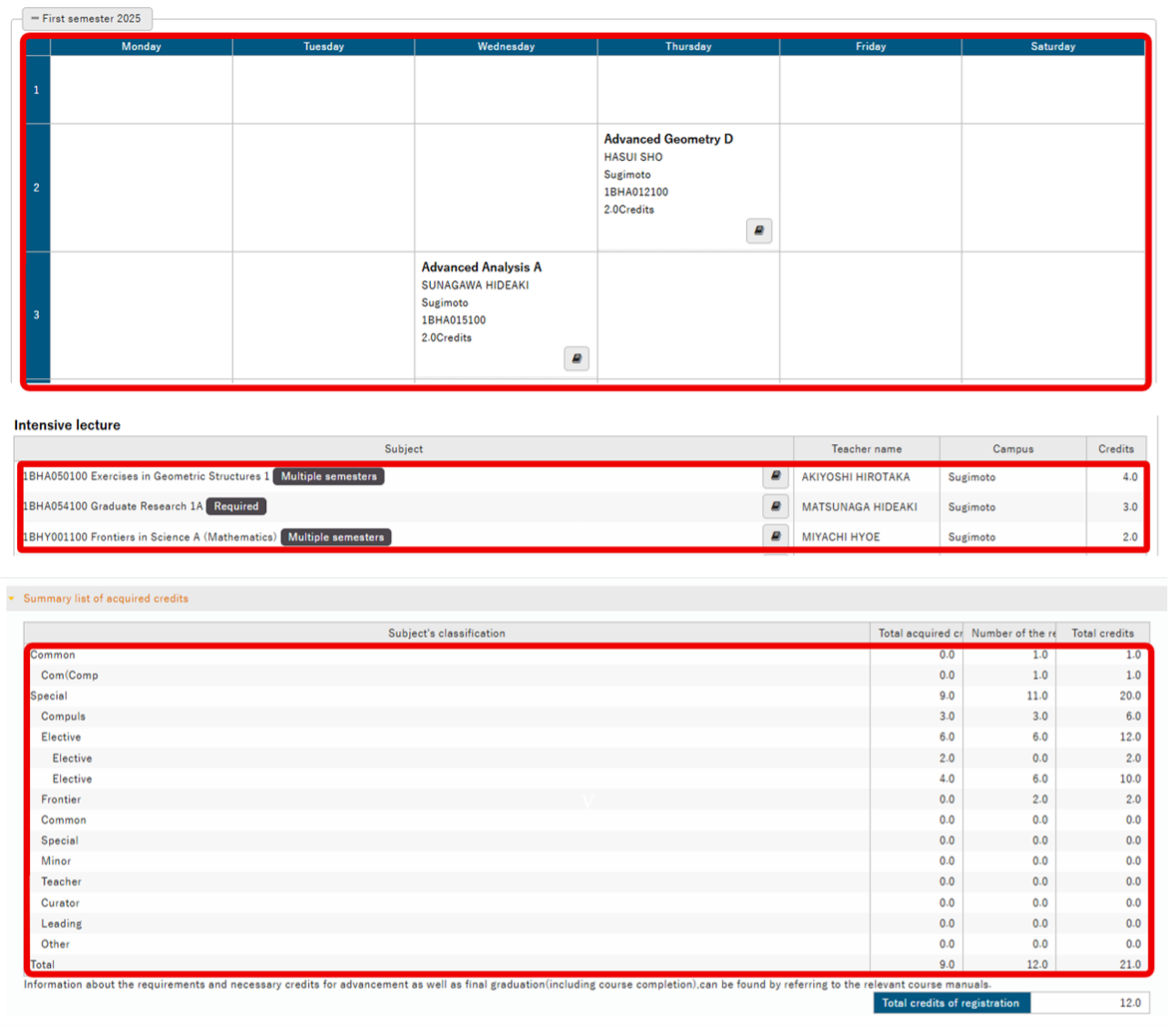
You can check the registered timetable. First, click “Class registration”(1), and then click “Student timetable”(2).

This is the list of courses you registered for this semester. Enjoy!
Checking your grades
You can check the grades for the classes you have taken from “Assessment inquiry”

